A Burrow is the server your secrets live in, on a machine of yours. It comes as one folder with everything it needs inside, its own Java runtime and its own database, so there's nothing else to install. This guide sets one up on Linux: download it, start it, and claim it with your RatelKey account, which makes you its owner.
What you need#
A Linux machine on x86-64 or ARM64. For macOS, Windows or Docker, see Installs.
Your normal user account on it. A Burrow won't start as root, because the database it runs for itself refuses to.
A browser on the same machine, or on a device on the same network.
A RatelKey account, or an email address to make one with. A GitHub account works too.
Copy the download command#
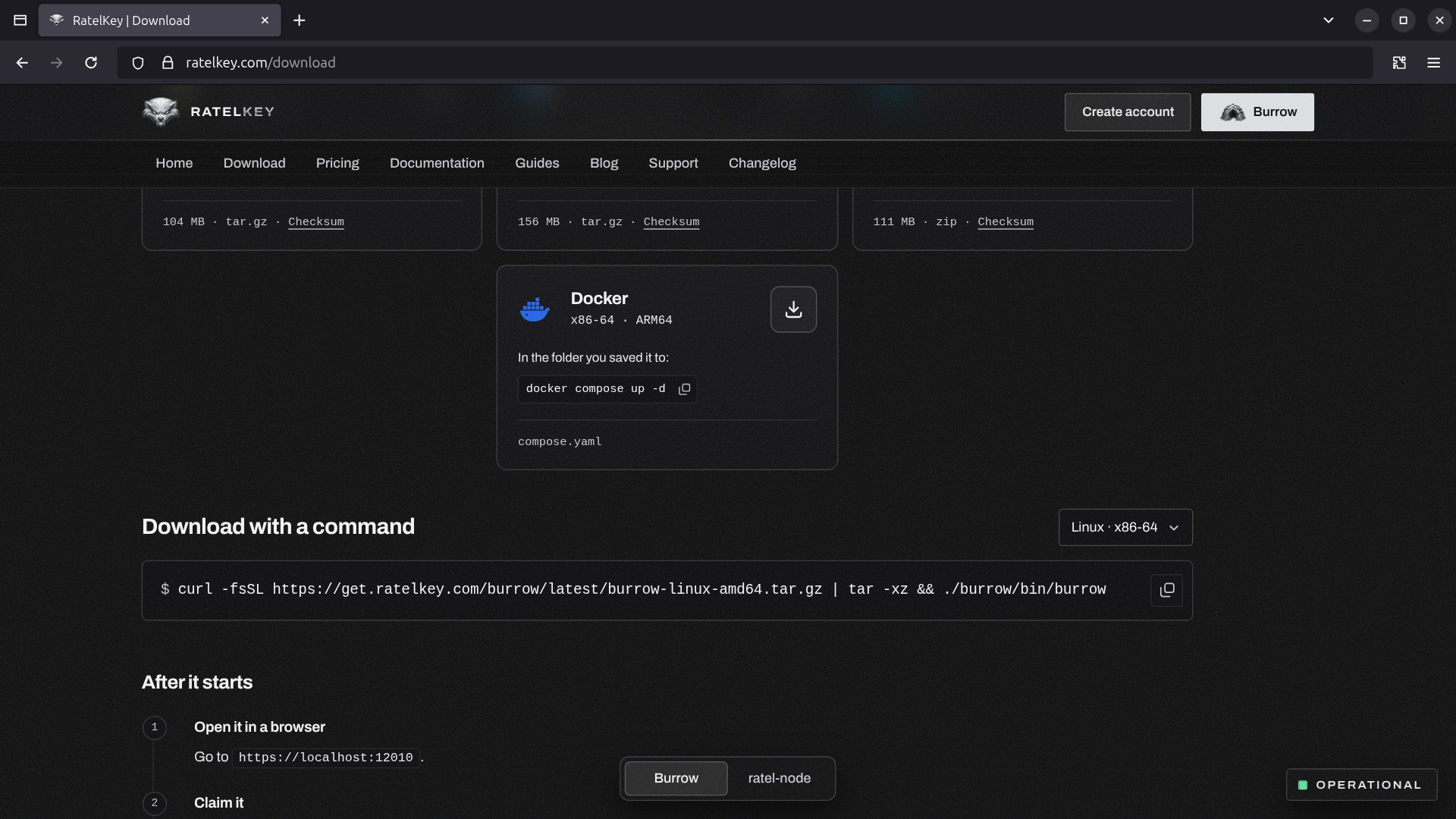
On ratelkey.com, select Download in the bar at the top of the page. Under Download with a command, pick your machine's build from the list, Linux · x86-64 or Linux · ARM64, and copy the line with the button at its end. For Linux on x86-64:
curl -fsSL https://get.ratelkey.com/burrow/latest/burrow-linux-amd64.tar.gz | tar -xz && ./burrow/bin/burrowIt downloads the latest Burrow, unpacks it into a burrow folder in the folder you run it in, and starts it. The cards above it download the same archive, for you to unpack yourself.
Run it#
Open a terminal in the folder the Burrow is to live in, your home folder for example. Paste the command and press Enter.
On its first start, the Burrow unpacks the PostgreSQL it brings, creates its database and makes its own certificate. Everything it keeps stays in the burrow folder. Once it's up, it prints where it answers and its certificate's fingerprint:
2026-10-22 16:48:27.695 [main] INFO  io.ktor.server.Application - ratel-burrow 5.6.1 started (production) — unclaimed — awaiting setup
2026-10-22 16:48:27.696 [main] INFO  com.ratel.burrow.Burrow - Responding at https://192.168.1.51:12010, and http://192.168.1.51:12010 from the local network
2026-10-22 16:48:27.697 [main] INFO  io.ktor.server.Application - TLS: self-terminated, self-signed cert — SHA-256 16:2f:1e:41:55:ea:60:13:26:9d:6b:70:ab:6d:7f:73:c9:d4:0c:95:26:20:30:71:65:06:5c:0a:6a:e0:d1:c3
2026-10-22 16:48:27.697 [main] INFO  io.ktor.server.Application - Application started in 0.286 seconds.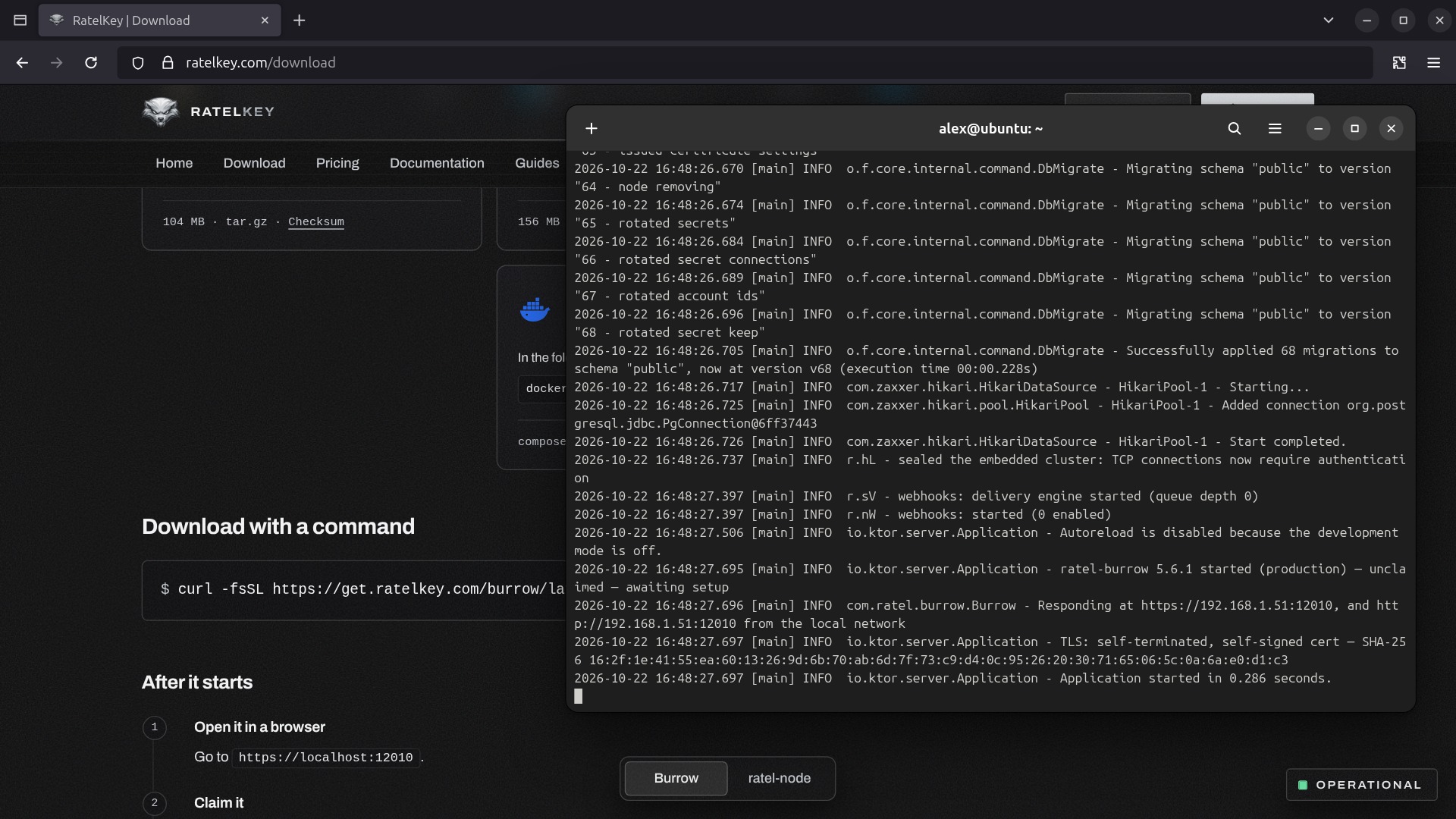
The Burrow runs in the terminal until you stop it with Ctrl+C, so leave it open. To have it start at boot instead, see Installs.
Open it in your browser#
Open the address it printed. In GNOME Terminal, right-click it and choose Open Link. On the same machine, https://localhost:12010 works too.
No authority vouches for the certificate the Burrow made, so the browser warns you the first time. In Firefox, select Advanced, then Proceed to 192.168.1.51:12010 (Risky). The button waits a moment before it can be pressed, and Firefox remembers the address from then on. To check it's your Burrow answering, View the site's certificate shows its SHA-256 fingerprint: it's the one the terminal printed.
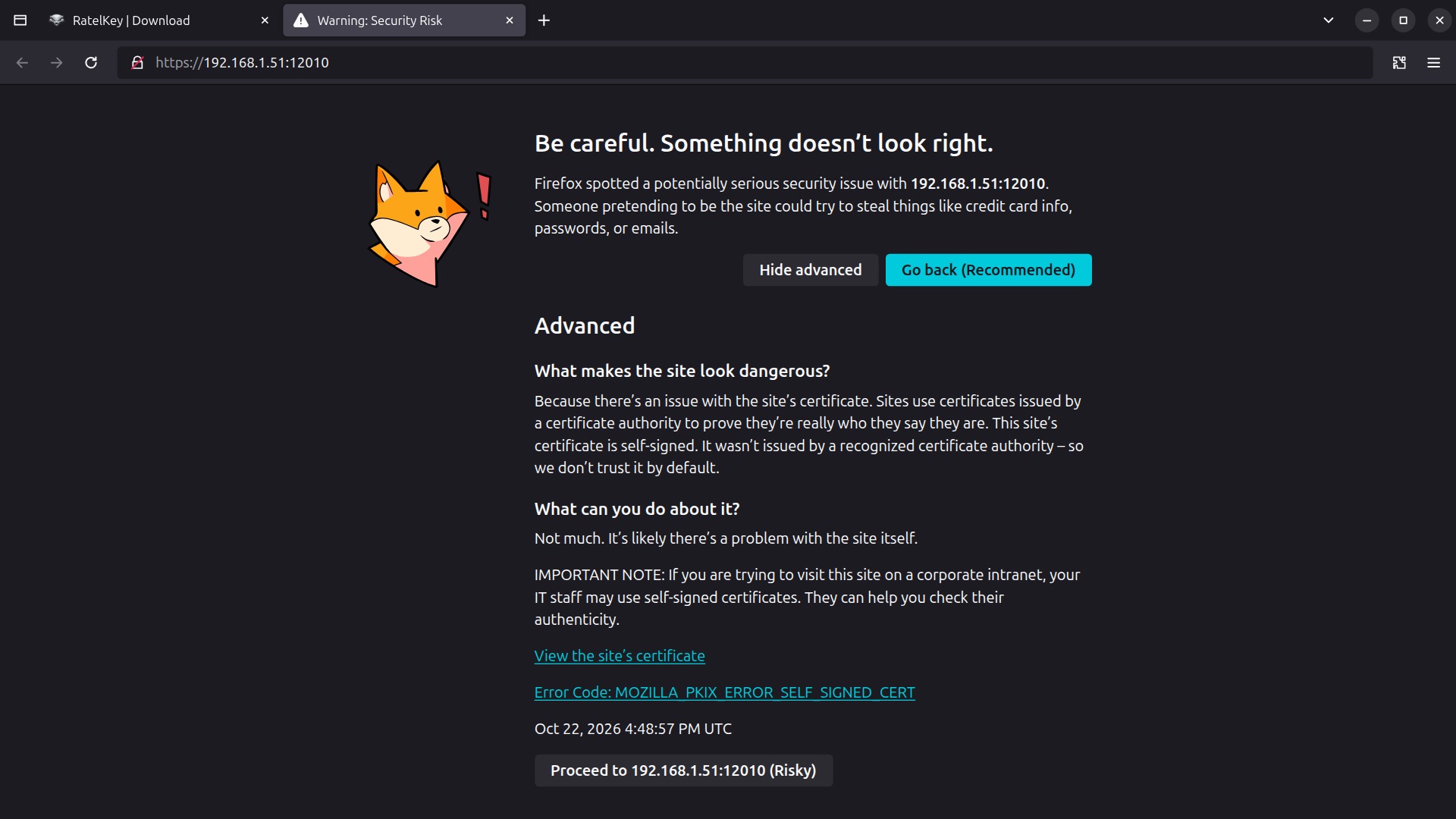
To have browsers trust it without asking, give it your own certificate or one from Let's Encrypt under Network in Burrow Settings.
Claim it#
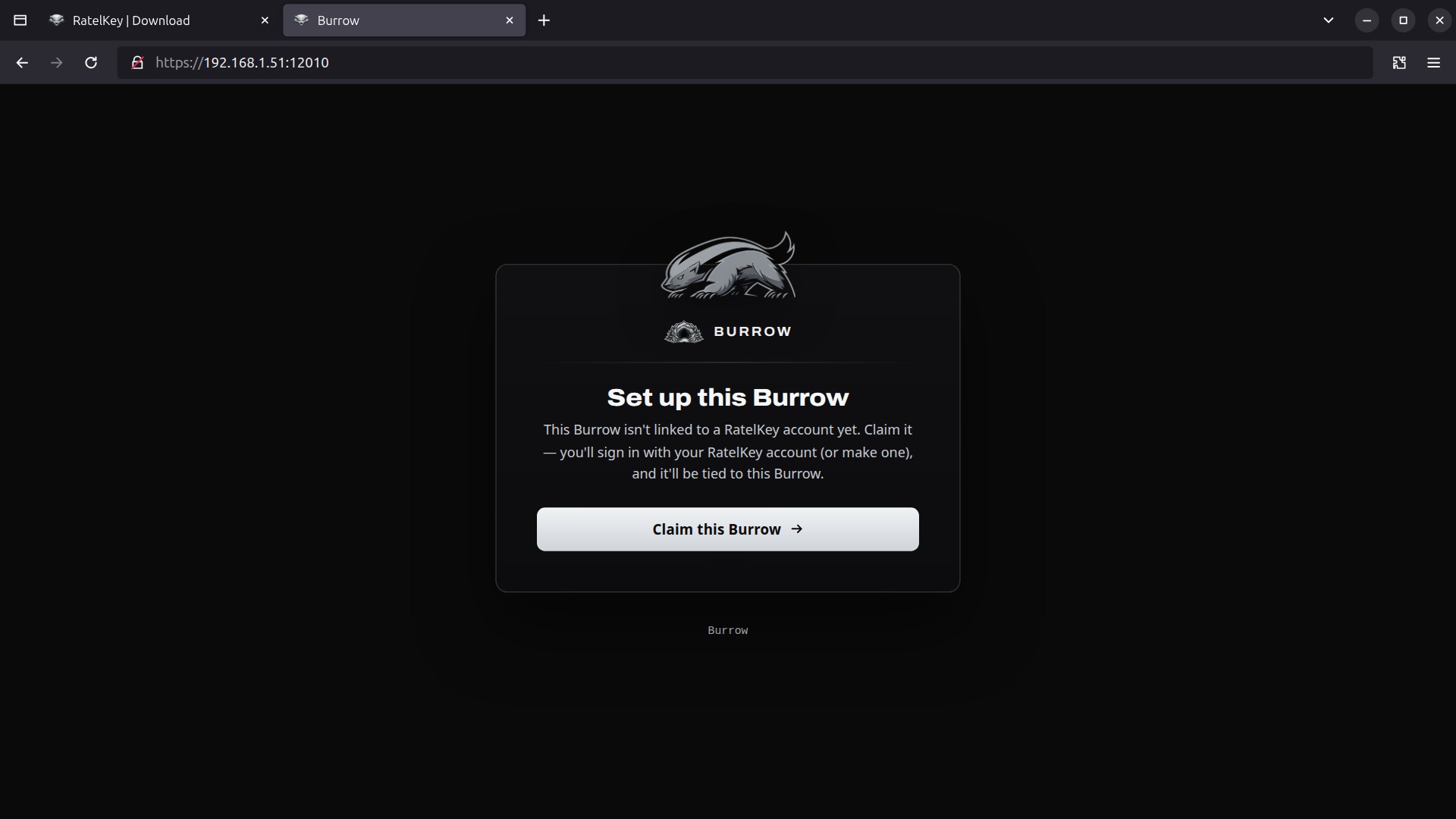
A new Burrow opens on Set up this Burrow. Select Claim this Burrow. Claiming ties it to a RatelKey account and makes you its owner, and from then on you sign in to it with that account.
It takes you to RatelKey's sign-in. Have an account? Sign in with it, or with Continue with GitHub. If this browser is already signed in to RatelKey, it skips ahead to the approval.
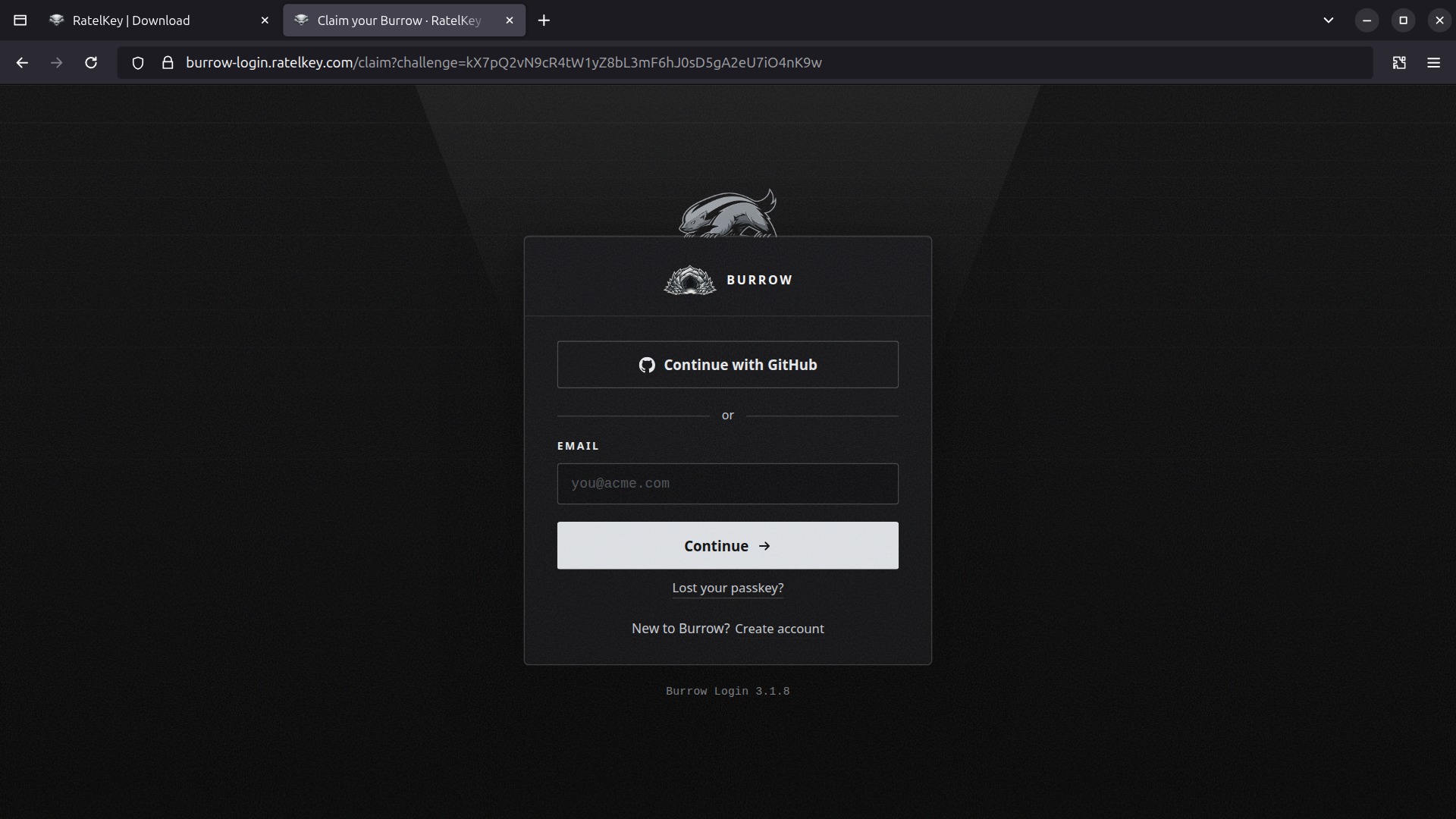
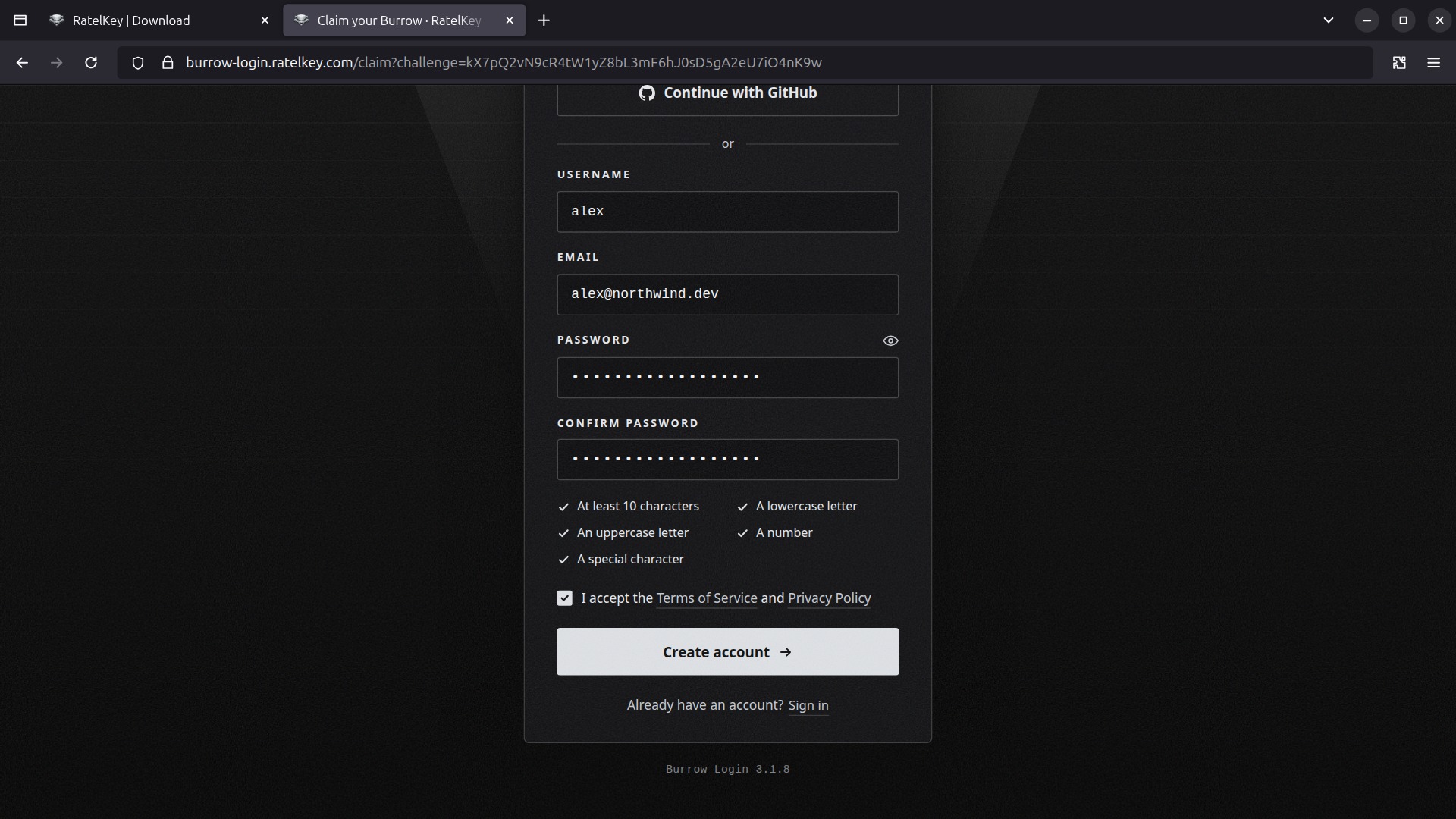
New to RatelKey? Select Create account and fill in:
Username and Email. The address has to be confirmed before you can own a Burrow.
Password and Confirm password: at least 10 characters, with a lowercase and an uppercase letter, a number and a special character. Each check is ticked once it's met.
The box that accepts the Terms of Service and Privacy Policy. Both open in a new tab, so what you've typed stays where it is.
Select Create account. Continue with GitHub creates it with your GitHub account instead, once the box is ticked.
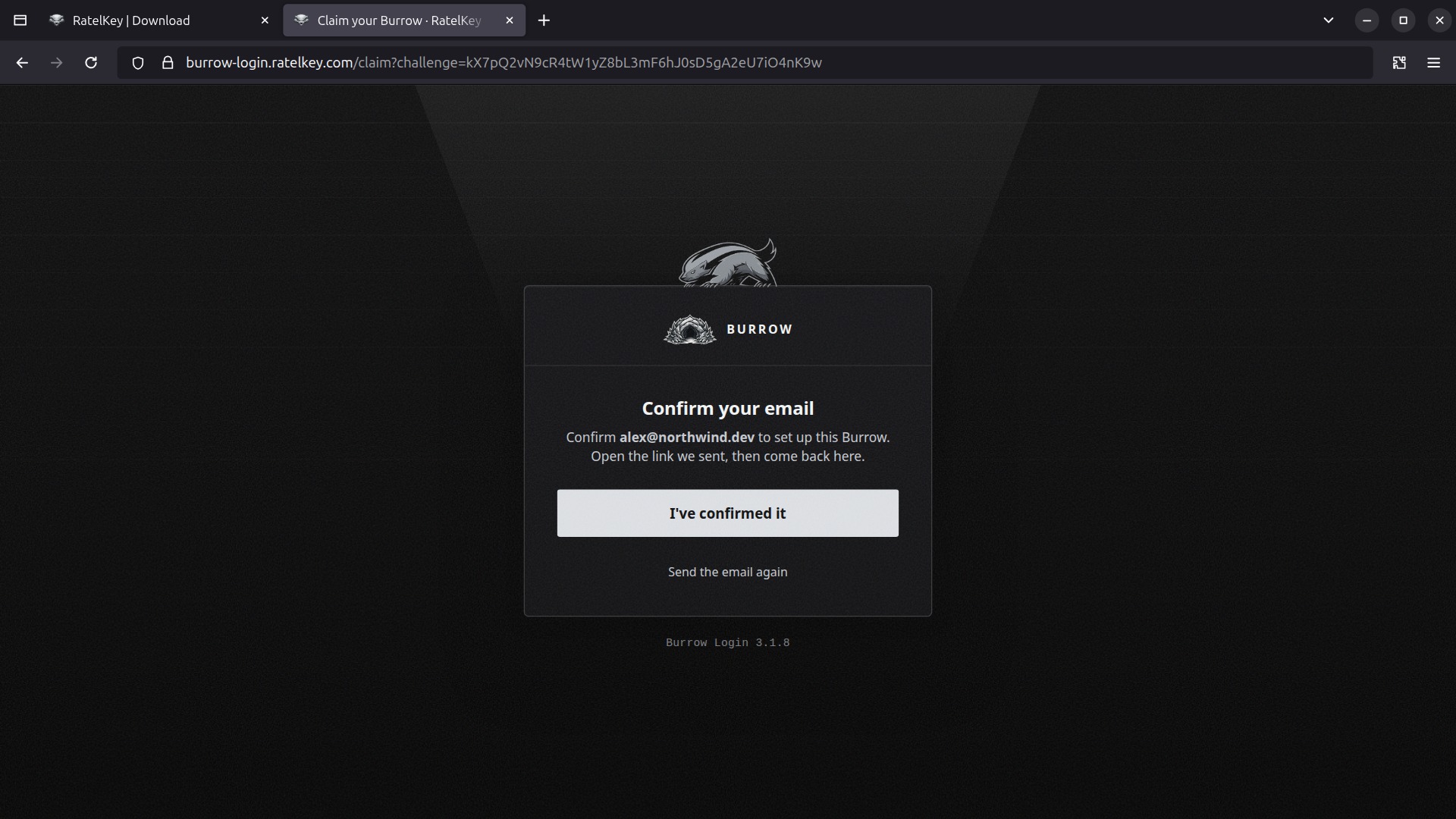
Confirm your email#
Owning a Burrow takes a confirmed address, since it's where your account's security mail goes. The setup waits on Confirm your email while you confirm it.
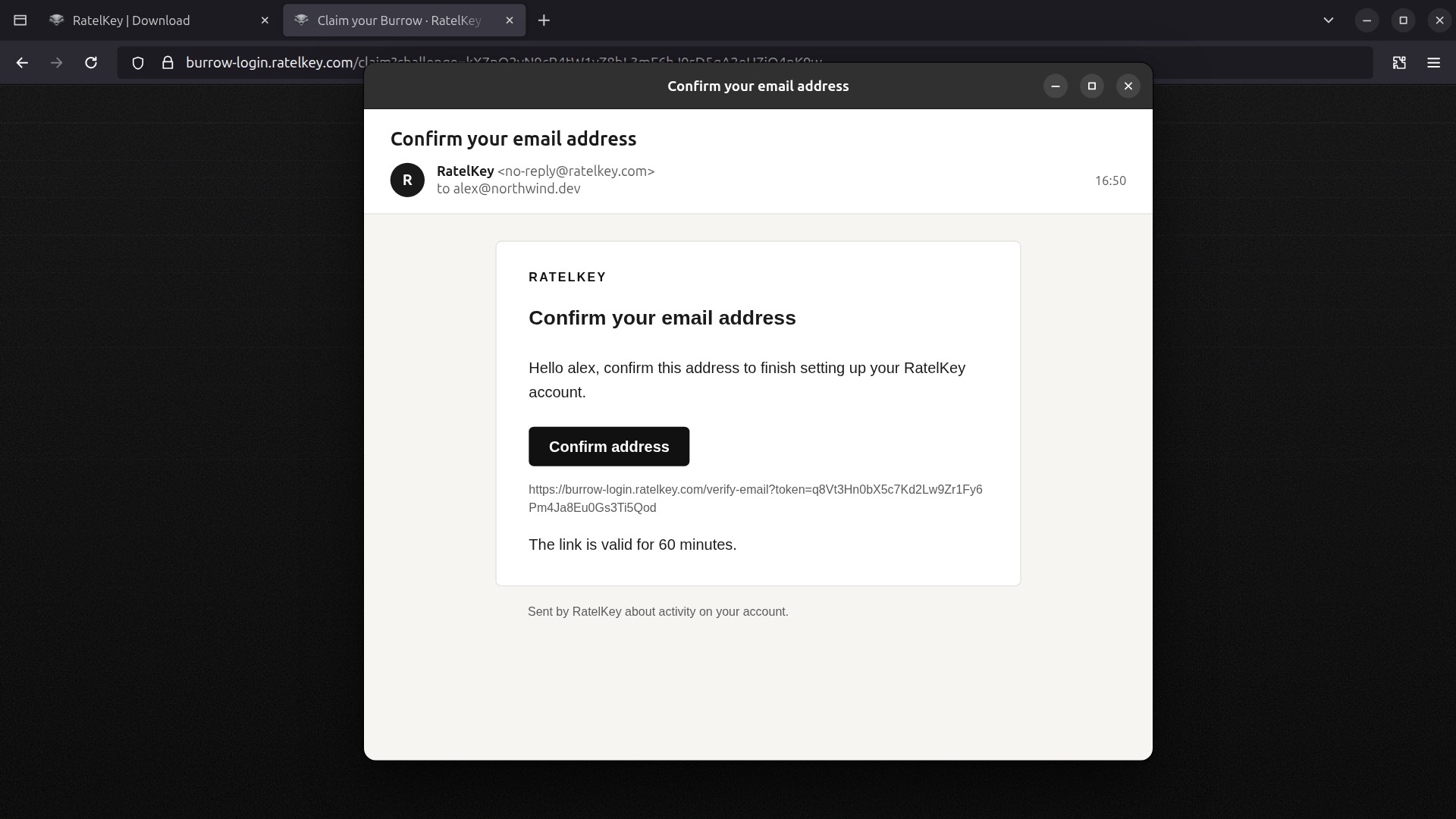
RatelKey sends Confirm your email address from [email protected]. Its Confirm address button opens the confirmation in your browser, and the link is valid for 60 minutes. Send the email again sends a new one.
Once its tab says Address confirmed, switch back to the tab you started from and select I've confirmed it.
Approve it#
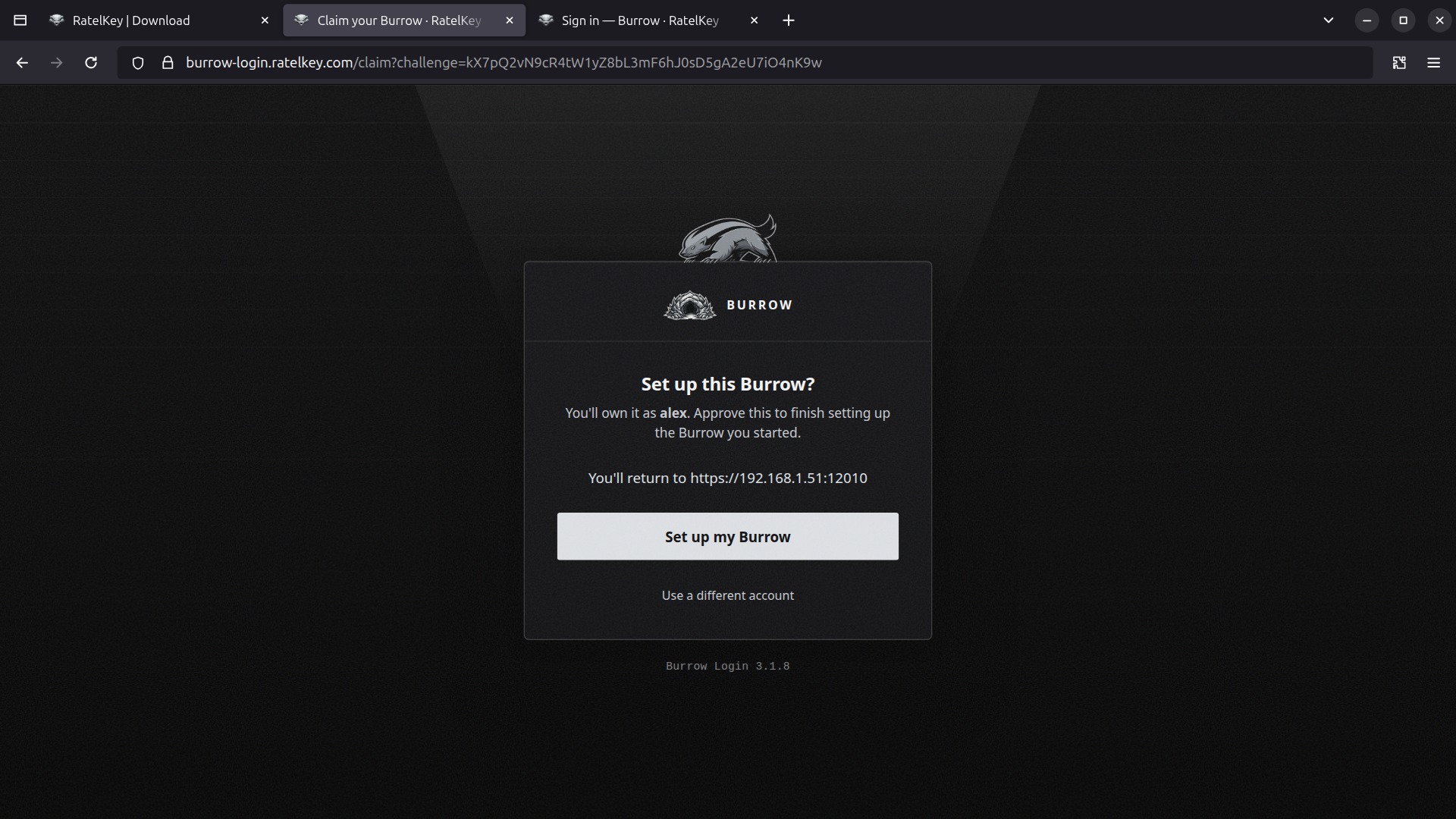
Set up this Burrow? shows the account you'll own it as, and the address you'll return to. Select Set up my Burrow. Use a different account goes back to the sign-in.
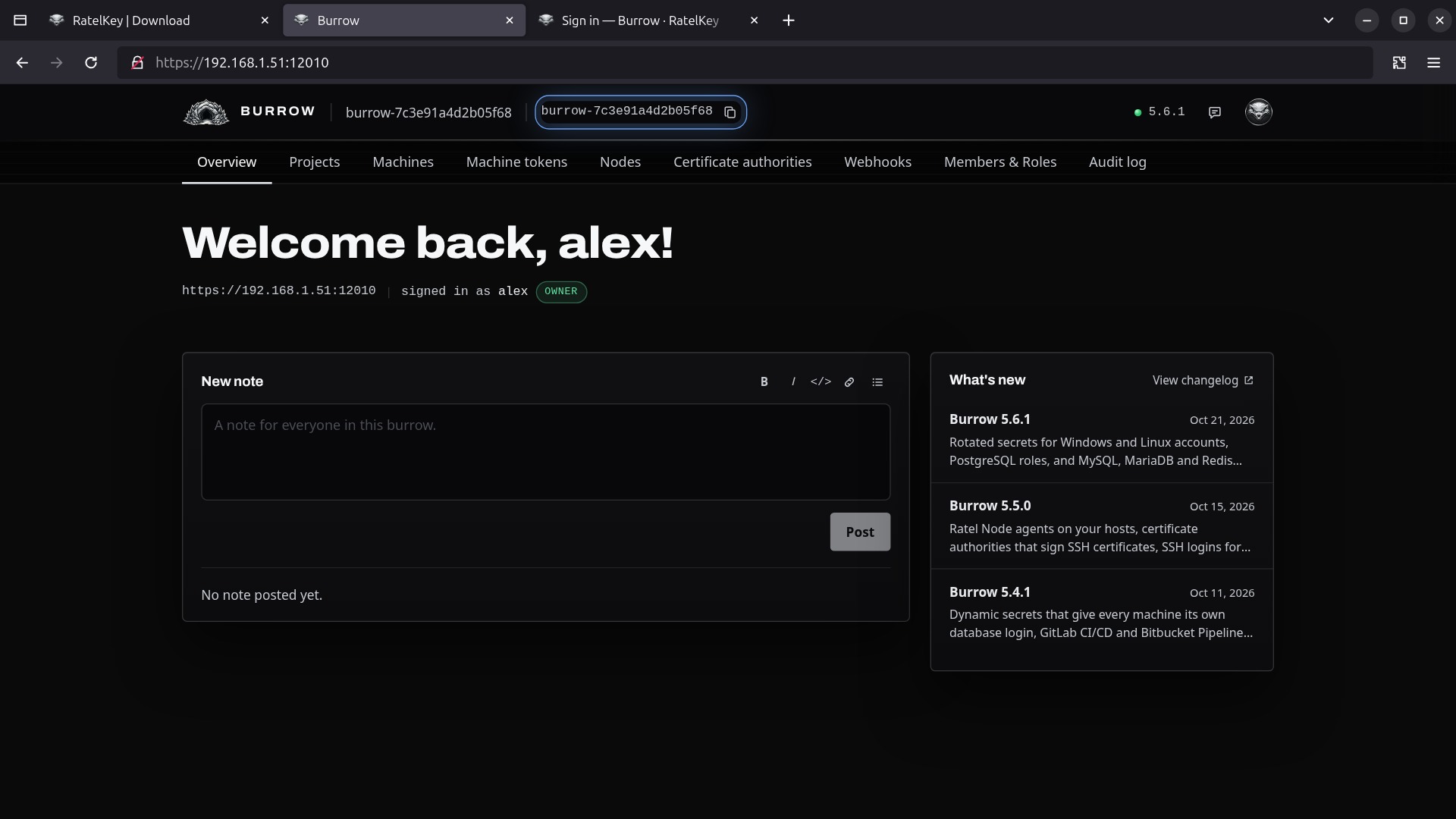
Back at your Burrow, it finishes setting up with your account and opens on its Overview, with you signed in as its owner. It's named by its ID until you give it a name in Burrow Settings, and the version in the bar offers each update when it's released.
Next, add a machine and give it a project: Command / Ed25519 in the documentation. Installing on macOS, Windows or Docker, and starting a Burrow at boot: Installs.