A node is ratel-node running on one of your hosts as a service, holding a connection open to your Burrow. Your Burrow sends it instructions, such as trusting a certificate authority for SSH logins, and it carries them out on that host. This guide sets one up on a Linux host, from the token to a node that's approved and keeps itself updated.
What you need#
A host to run it on, with root there through
sudo. This guide uses Linux; ratel-node also runs on macOS and Windows.A role in your Burrow with read and write on Nodes. The built-in Administrator role has them.
Create a token#
Open Nodes and select the + at the top right of the table.
Name: what the node is called in your Burrow, in lowercase letters, digits and hyphens. Left empty, it takes its host's name.
URL: where the node reaches your Burrow. The list starts with your Burrow's own addresses, then the custom domains saved from earlier tokens, each marked with a globe. Custom domain takes one you type, such as a tunnel's, and saves it for next time.
Connection: Encrypted works everywhere, including behind a tunnel or proxy. Encrypted + verified has the node check it's talking to your Burrow, so nothing can impersonate it.
Verify by: asked when your Burrow serves its own certificate and the URL is a name. Burrow identity when the node reaches your Burrow directly, System trust when a proxy or CDN in front of it presents its own certificate.
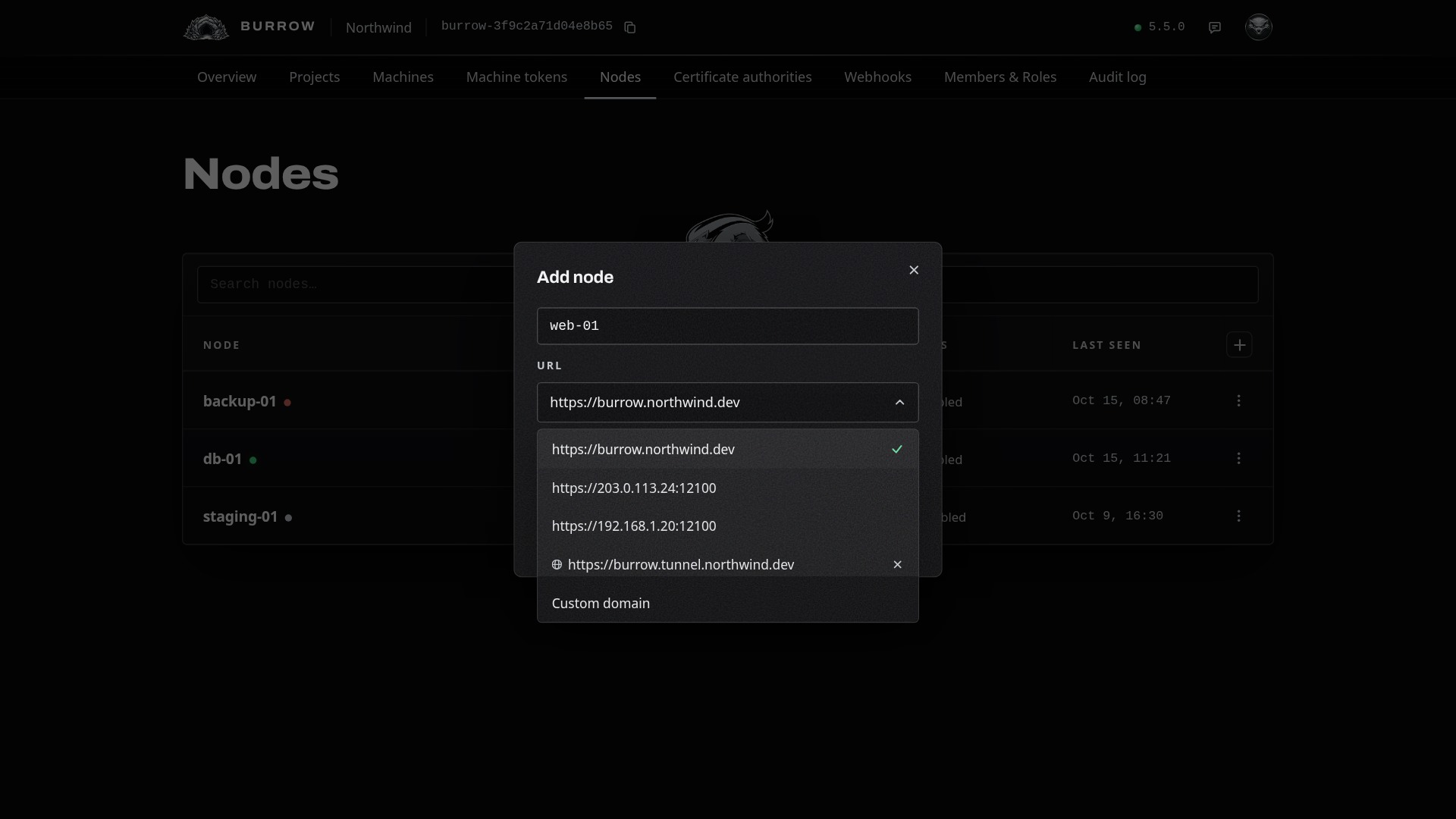
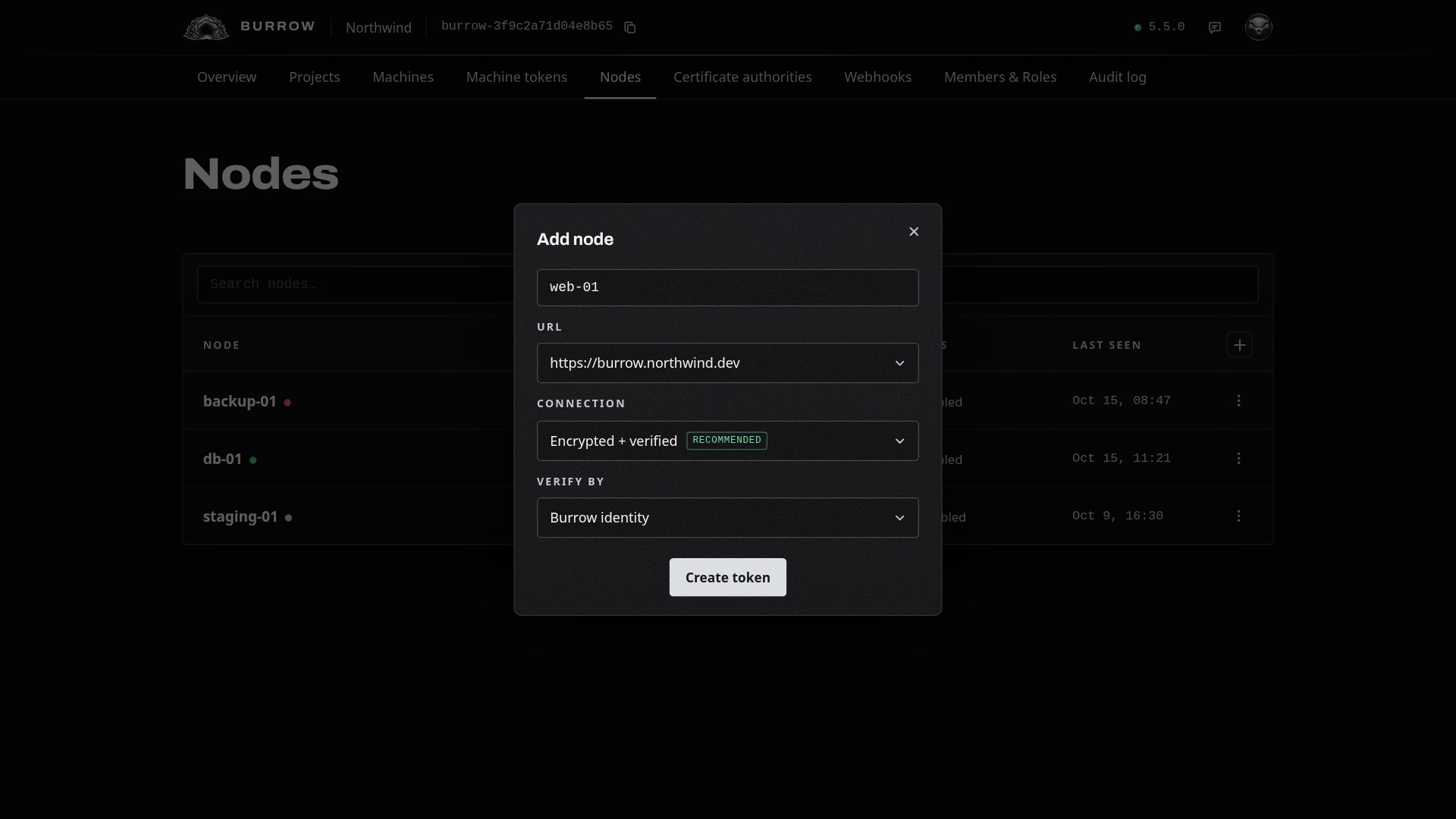
Select Create token and copy the token. It works once, and expires after the invitation expiry set under Settings, Security.
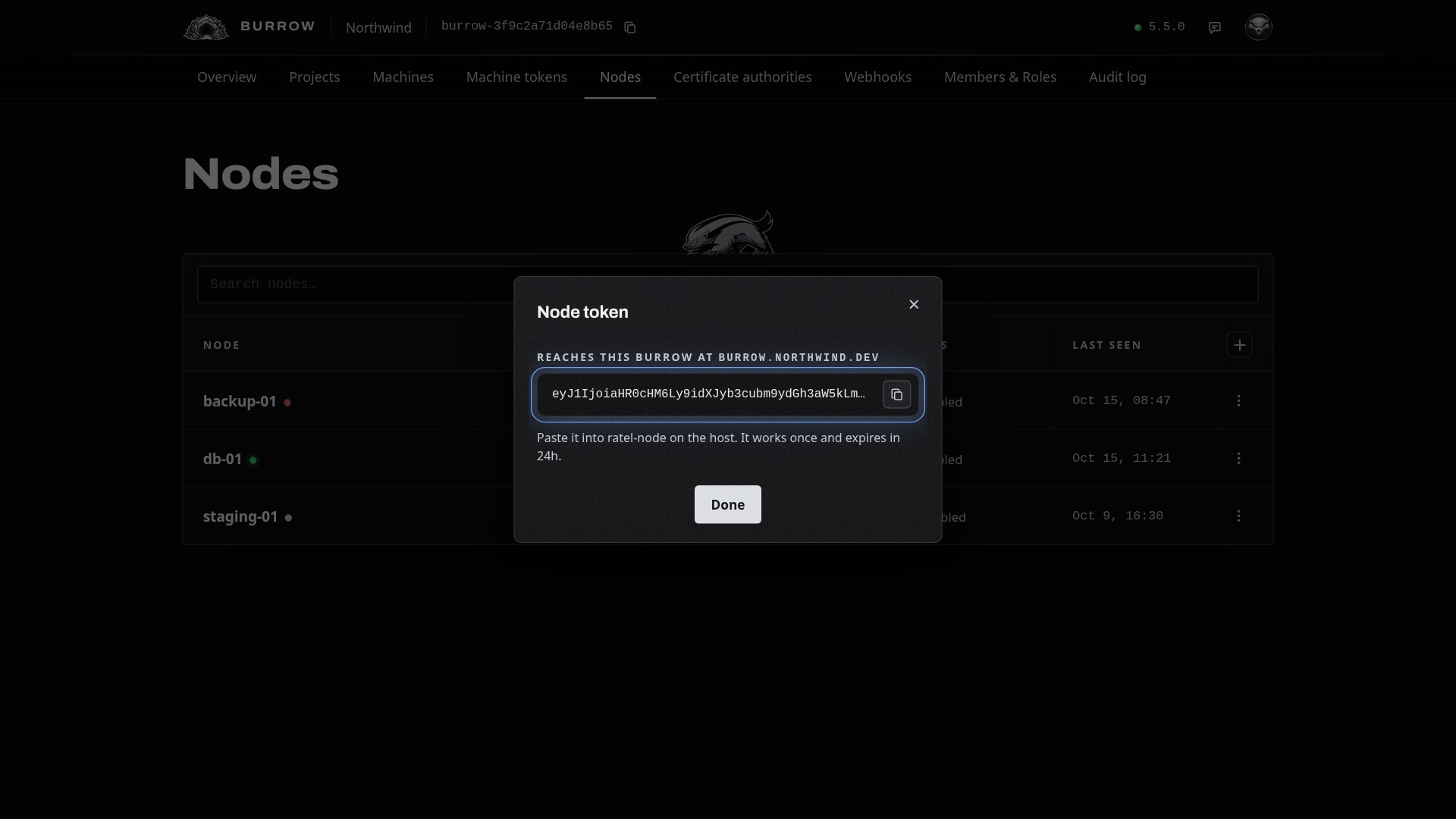
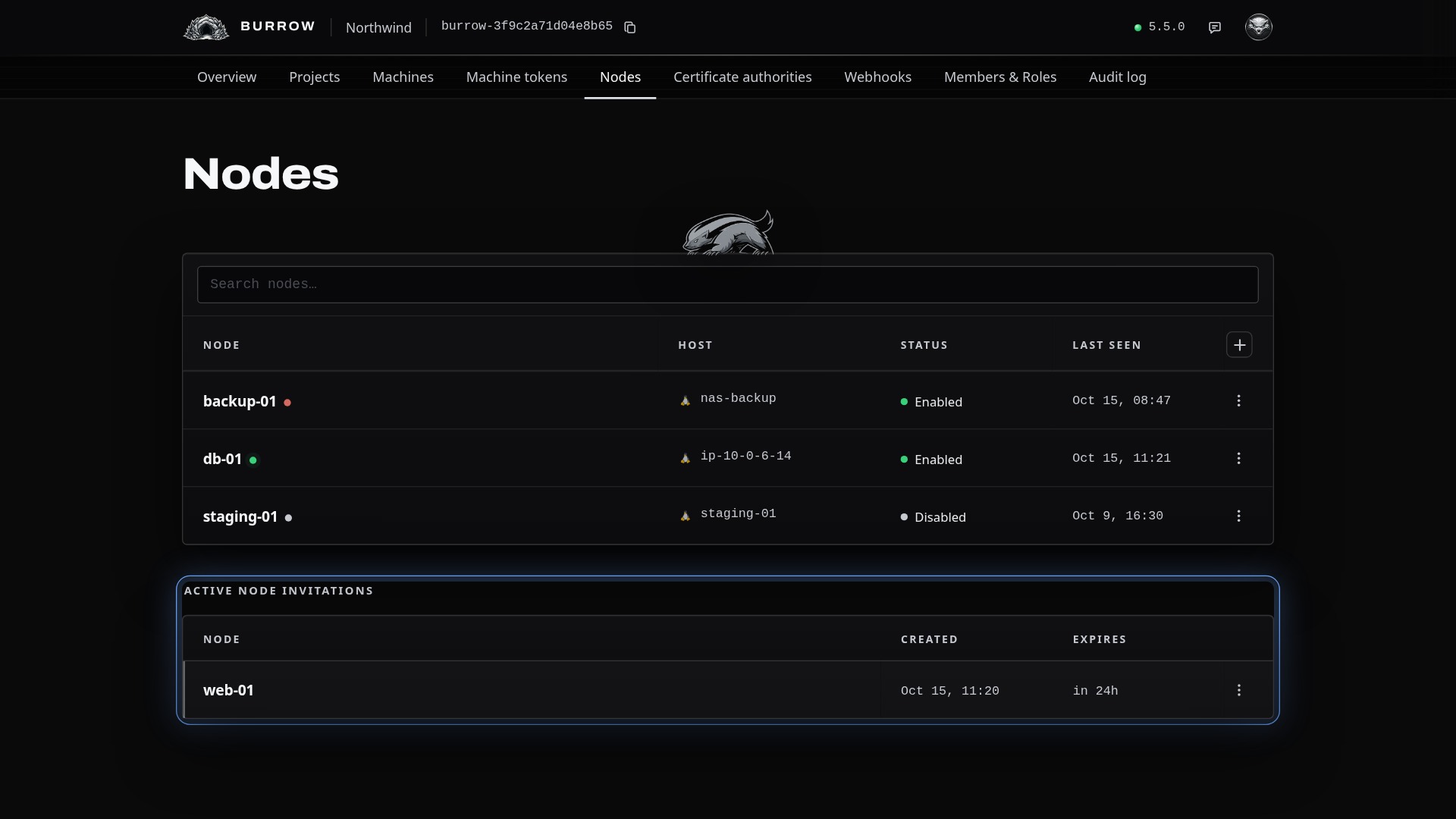
Until it's used, the token is listed under Active Node Invitations. Show token in its row menu gives it back, with the URL and connection it was made with, and Revoke cancels it.
Install ratel-node on the host#
Copy the command for your host from the ratel-node download page. On Linux on x64:
curl -fsSL https://get.ratelkey.com/ratel-node/latest/ratel-node-linux-amd64.tar.gz | tar -xz && sudo ./ratel-node/ratel-node-service.sh installIt downloads ratel-node, which brings its own Java runtime, unpacks it into the folder you're in, and runs its service script, which installs it as a service that starts at boot.
The service runs as root, so the folder ratel-node lives in, and every folder above it, has to be one only root can change. Run from a home folder, the script offers to move it to /opt/ratel-node and carries on from there:
ratel-node runs as root, so the folders above it must be root's alone, and /home/alex isn't.
Move it to /opt/ratel-node and carry on? [Y/n] y
Moved to /opt/ratel-node.
On macOS it offers /usr/local/ratel-node. On Windows, run ratel-node-service.bat: it asks for administrator rights, and offers to copy ratel-node into Program Files\ratel-node.
Connect it to your Burrow#
The first time, the script asks for the token. Paste the one you copied:
This node isn't connected to a Burrow yet.
Create a token on the Nodes tab in your Burrow, and paste it here.
Token: eyJ1IjoiaHR0cHM6Ly9idXJyb3cubm9ydGh3aW5kLmRldiIs…
Registering with https://burrow.northwind.dev...
Registered with Northwind as web-01. Waiting for approval there.
ratel-node is running as a service, and starts at boot.
    Status:  systemctl status ratel-node
    Output:  journalctl -u ratel-node -f
The node registers at the token's URL, checking it reached your Burrow the way the token's connection says, and holds its connection open from then on, reconnecting by itself when it drops.
Approve it#
With Require machine & node approval on under Settings, Security, a new node arrives with a Pending tag. It's connected, and your Burrow sends it nothing until a member approves it: point at its dot to see that. Choose Approve from its row menu.
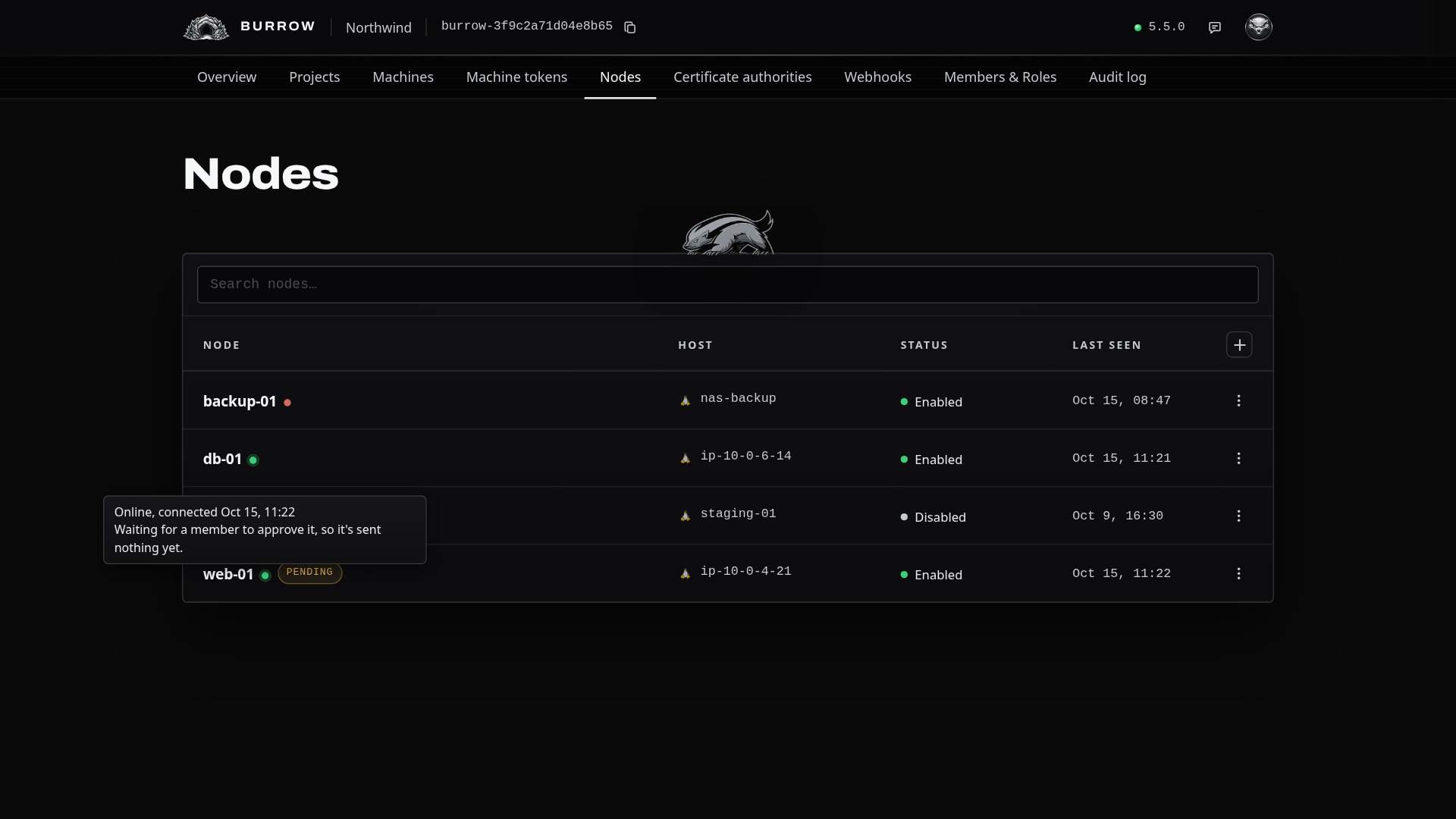
With approval off, setup says it's connected, and the node takes instructions straight away.
Keep it updated#
sudo /opt/ratel-node/ratel-node-update.sh installs the latest release when you run it. To have the node update itself, open the service script's updates menu:
sudo /opt/ratel-node/ratel-node-service.sh updates ratel-node automatic updates
Now: off
[1] Off
[2] Every few hours
[3] Once a day
[4] Back
Choose an option: 3
At what time, on this machine's clock? (HH:MM, Enter for 03:00): 04:30
Automatic updates: once a day at 04:30. The running node picks this up within a minute.It updates every 1 to 168 hours, or once a day at a time on the host's clock. If a new version doesn't start, the previous one is put back.
Read the nodes table#
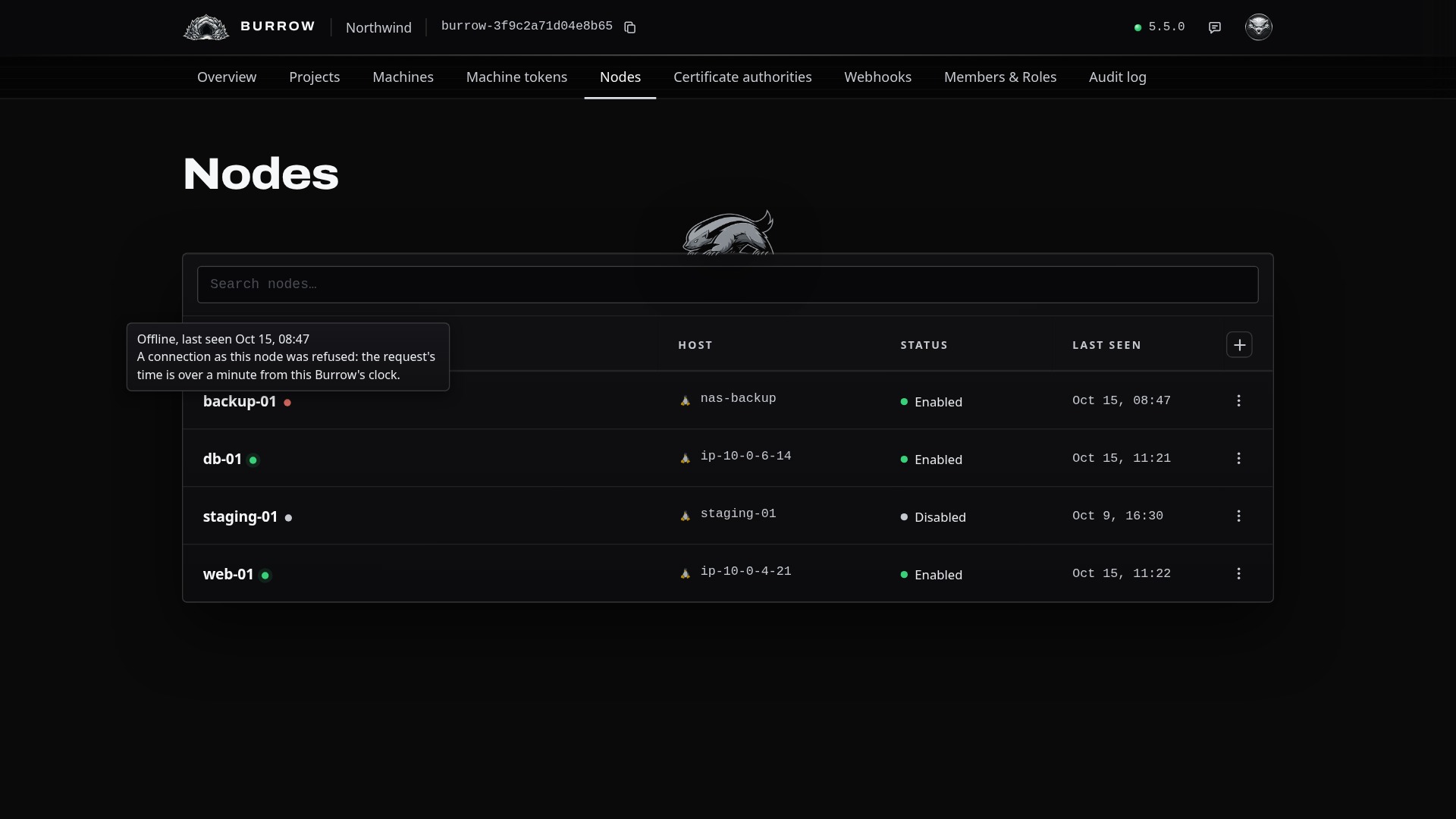
Each row shows the node's name, its host's name and operating system, whether it's enabled, and when it was last heard from. The dot after the name is its connection:
Dot | Meaning |
|---|---|
Green, pulsing | Connected. |
Amber, pulsing | Connected, and its last instruction failed or got no answer. |
Red | Offline after a problem with its connection. |
Grey | Offline, or disabled. |
Point at the dot for what it means, since when, and the problem in full.
Manage a node#
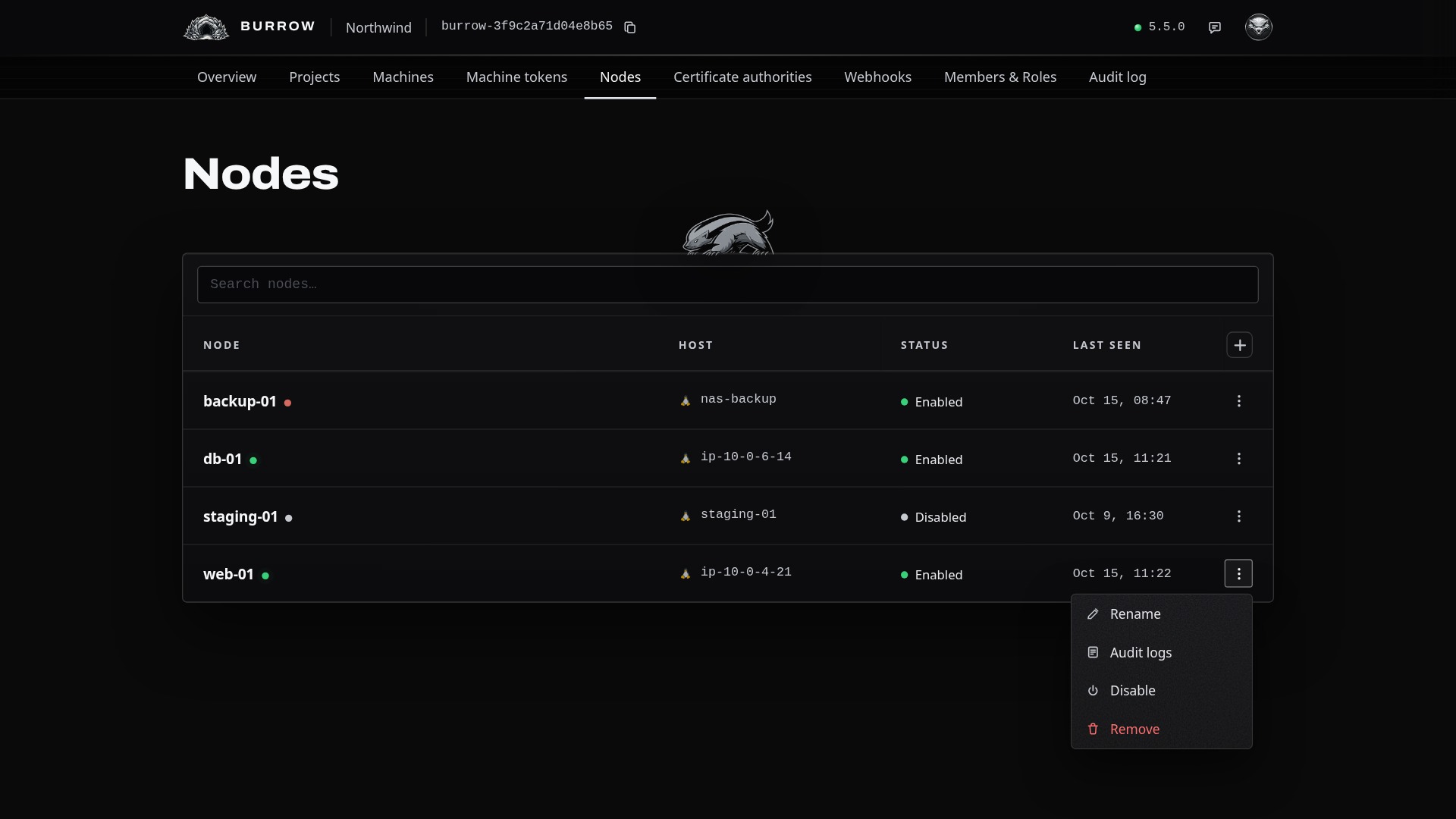
Action | What it does |
|---|---|
Rename | Changes the node's name in your Burrow. Nothing changes on the host. |
Audit logs | Shows the node's own trail, to members who can read the audit log. |
Disable, Enable | Disabling ends the node's connection, and your Burrow refuses it until it's enabled. |
Remove | Detaches the node from its certificate authorities and ends its connection, which is refused from then on. The node takes everything your Burrow had it put on its host back off. |
Next, give its host a certificate authority to trust: Set up a certificate authority. Every option in one place: Nodes and Ratel Node in the documentation.