
A GitHub Actions workflow reads secrets under a machine you register for its repository. The workflow authenticates with a token GitHub mints for each run. You add the machine here, then point the workflow at your Burrow. For a server or container you run a command on, see Command / Ed25519.
Add the machine#
Open Machines and use the
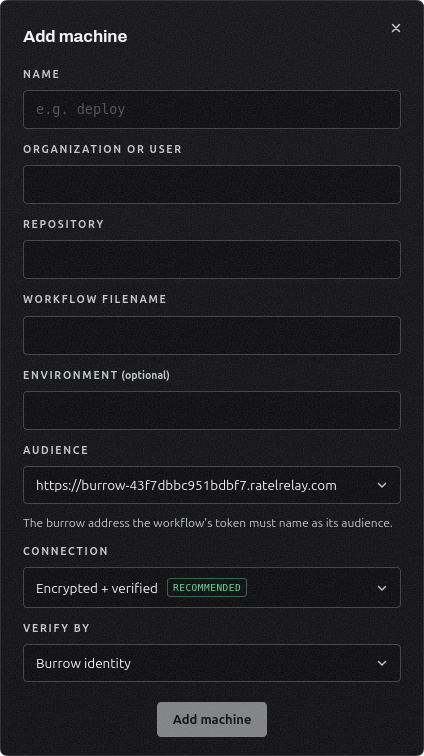
+at the top right, then set the method to GitHub Actions and select Continue.Name the machine, then enter the organization or user, the repository, and the workflow filename such as
release.yml. Environment is optional; set it to pin the machine to one deployment environment.Choose the audience the workflow requests. It defaults to your Burrow's address.
Select Add machine.
The machine authenticates only a token whose repository, workflow, and, when you set one, environment match what you entered. It appears on the Machines page with its repository in place of a key fingerprint.
Point the workflow at your Burrow#
In the workflow, give the job permission to request a token, install the CLI, select OIDC, and read secrets:
permissions:
  id-token: write

steps:
  - run: npm i -g @ratelkey/cli
  - run: ratel auth use oidc --burrow https://your-burrow
- run: ratel secret get myapp/prod/DATABASE_URLConnection#
How the workflow trusts your Burrow is set by flags on ratel auth use oidc, the same choice you would make under Connection for a command machine.
Connection | Flag |
|---|---|
Encrypted |
|
Verified, Burrow identity |
|
Verified, system trust | No flag. The Burrow has a publicly-trusted certificate, or sits behind a proxy or CDN that presents one. |
If you chose an audience other than your Burrow's address, add --audience to match it.
Once the machine exists, give it access and manage it from Machine grants.